ARMY Users
User must complete the following steps BEFORE submitting an AESMP Trouble Ticket...
Compliance Requirement Statement
COARNG servicemembers are required to be compliant with the following requirements:
-
COARNG members must be properly aligned in ID Card Office Online (IDCO).
-
COARNG members must complete Cyber Awareness Training on ATIS Learning.
-
COARNG members must complete the IT User Agreement Form.
-
COARNG members must have a fully approved baseline SAAR through the new Account Validation System (AVS) portal.
This is a prerequisite for all system access requests; all requests will reference this baseline SAAR.
If you have not submitted a baseline SAAR, all system access requests will be rejected until such time as a baseline SAAR is completed.
Approval for specific system access requests remain subject to system specific requirements
IDCO Alignment Instructions
Step 1. Navigate to IDCO: https://idco-pki.dmdc.osd.mil/idco/myprofile-info
- You will be required to log in with your CAC and to establish a “myAuth” account before logging in to IDCO.
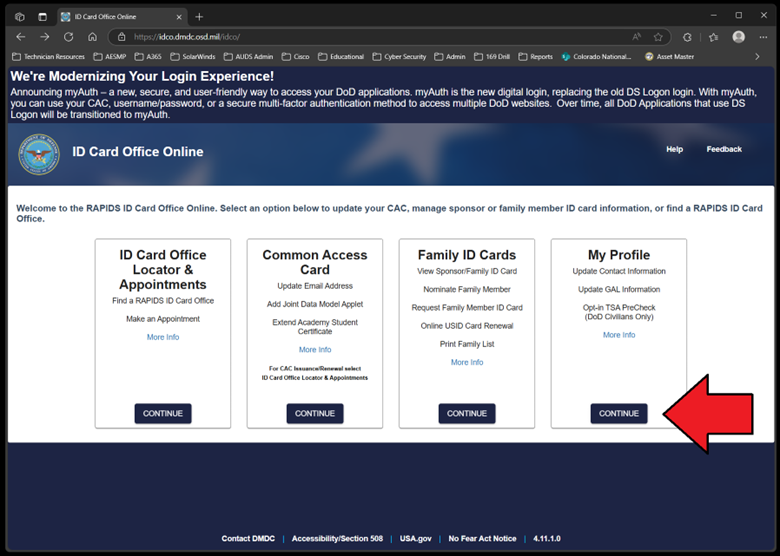
Step 2. Select “My Profile” on the IDCO homepage.
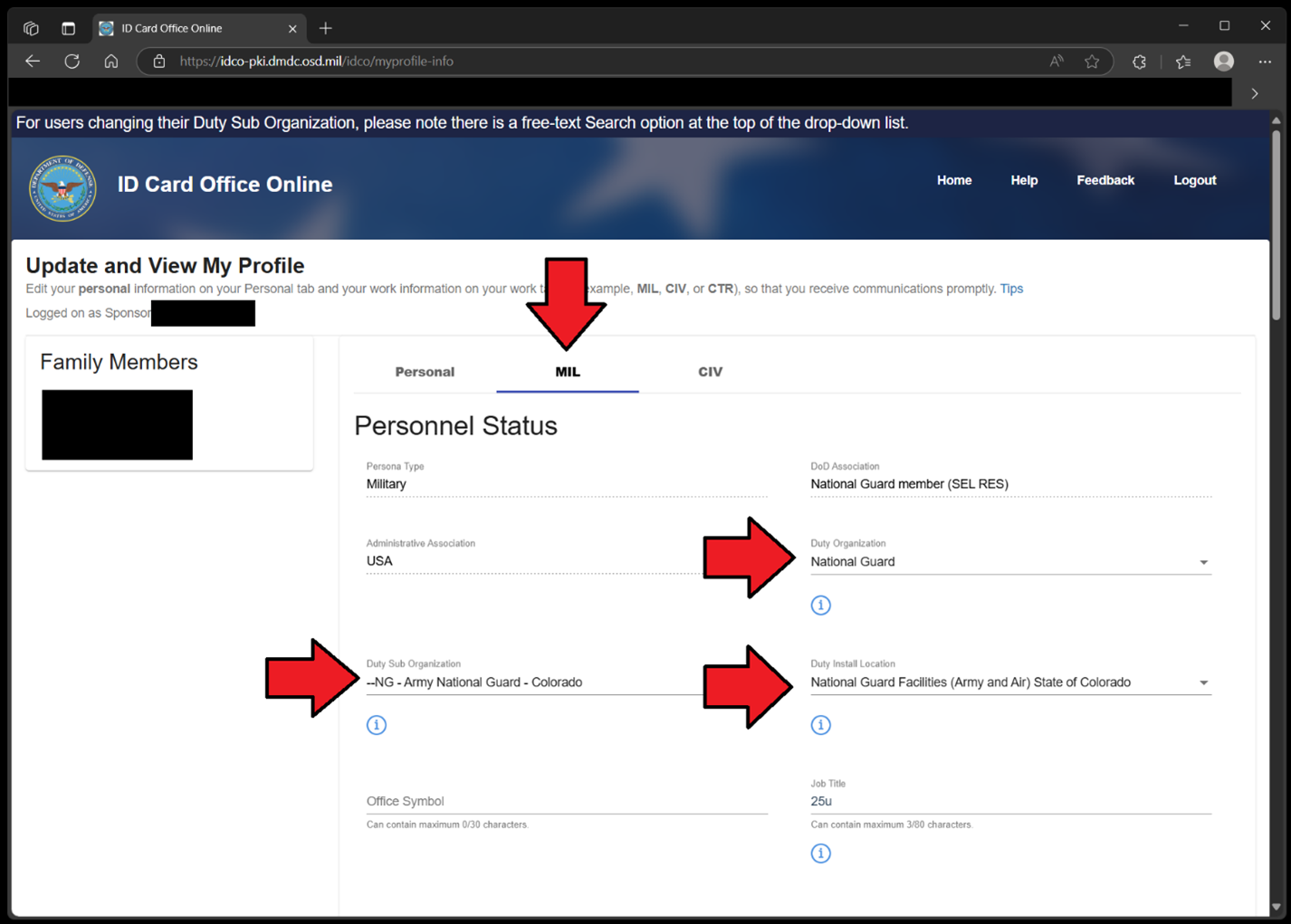
Step 3. Within the “MIL” tab on IDCO, confirm the following information,
- Duty Organization: National Guard
- Duty Sub Organization: NG – Army National Guard – Colorado
- Duty Installation/Location: National Guard Facilities (Army and Air) State of Colorado
Cyber Awareness Training on ATIS Learning Instructions
Step 1. Navigate to ATIS Learning: https://learn.atis.army.mil
Step 2. Go to the Catalog and type in Cyber Awareness Training in the search box.
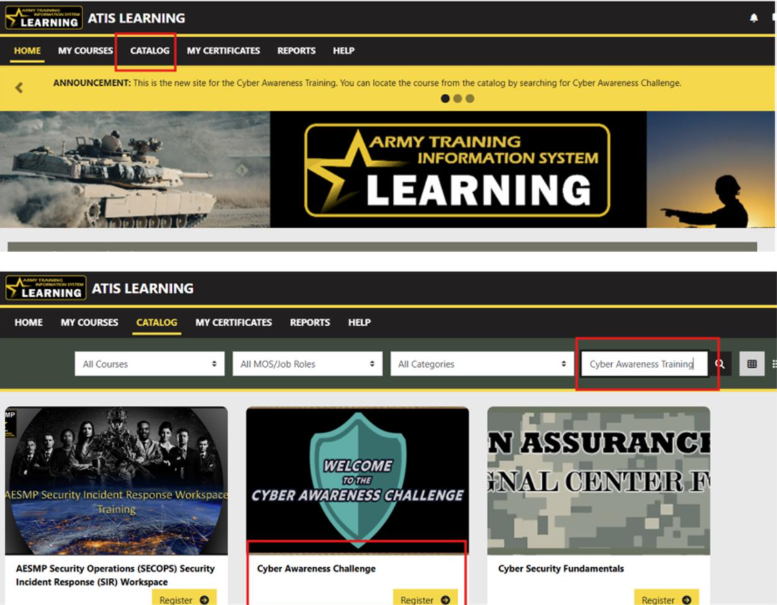
Step 3. Select Register, then Register again to continue and start training.

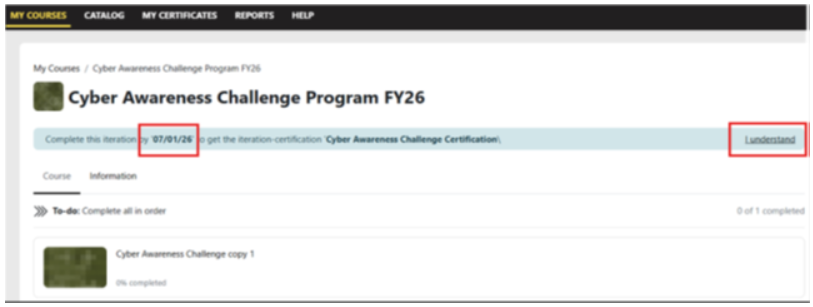
Step 4. Once you Select Register, you will have in your queue for 3 months to complete or save.
- Select “I Understand” to move into the test.
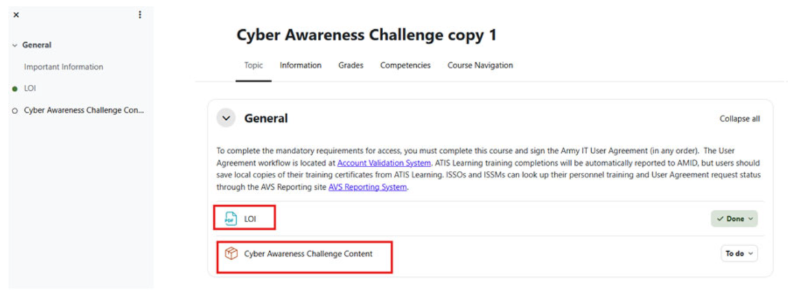
Step 5. Select LOI to open the Letter of Instruction.
- Select Cyber Awareness Challenge Content
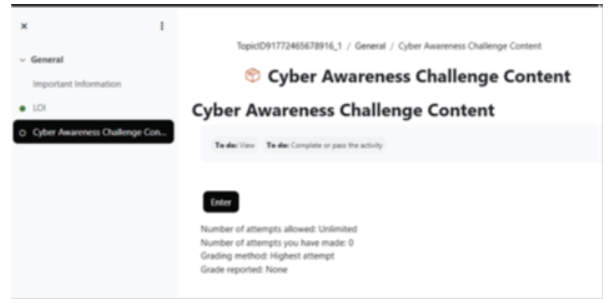
Step 6. Select Enter to continue
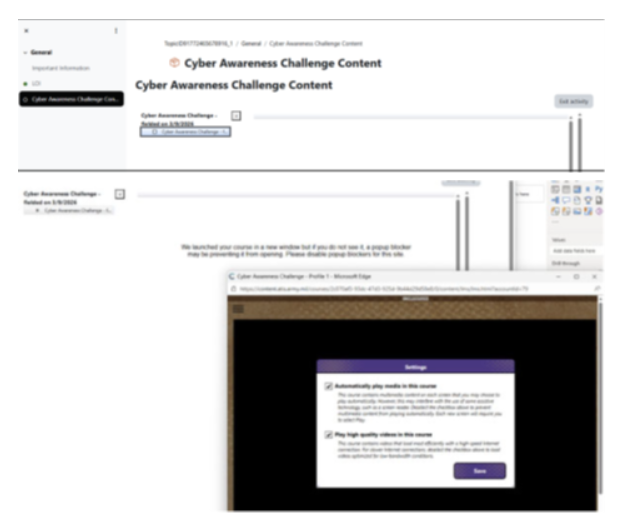
- Select Content and begin
- It will open in a separate window so make sure you don’t over-click and check behind open windows.
IT User Agreement Form Instructions
Step 1. Navigate to IGA website: https://iga.army.mil
Step 2. In the upper left, Select “IT User Agreement Form”
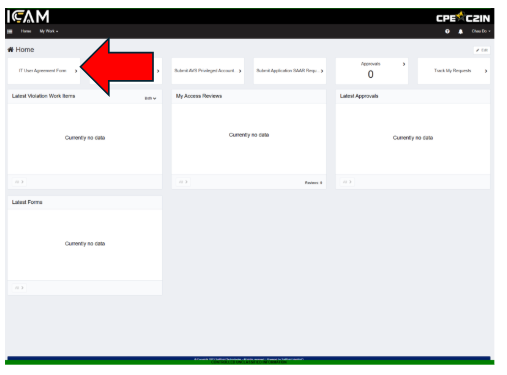
Step 3. Follow all the statements and continue by selecting “Next”
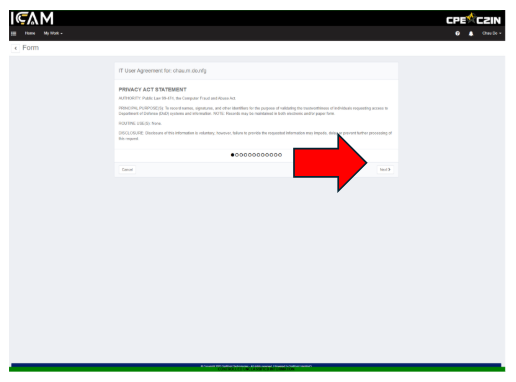
Step 4. Follow all the statements and continue by selecting “Next”
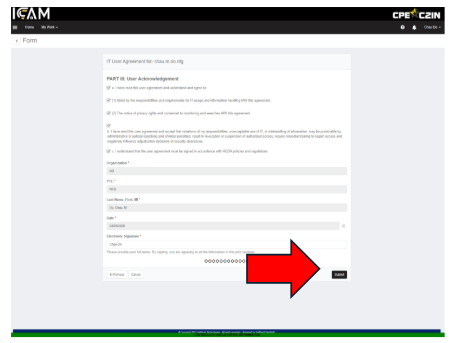
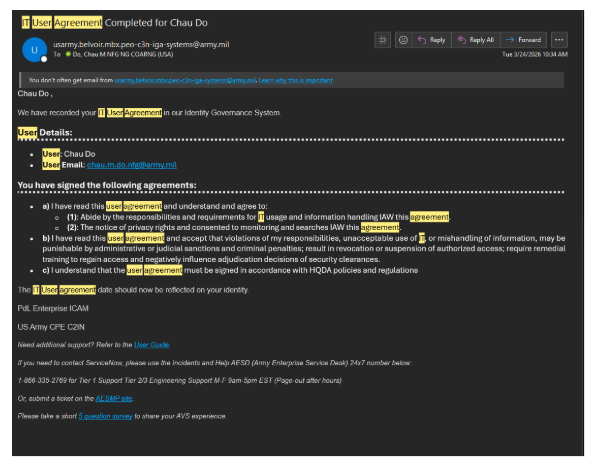
Step 5. Once you select “Submit” the window will close and will not show you confirmation (as of today).
Baseline SAAR Instructions.
Step 1. To submit a baseline SAAR, first ensure you are compliant with the following requirements:
Step 2. Navigate to: https://iga.army.mil
Step 3. Select “Submit (2875) Baseline SAAR Request” and follow the instructions.
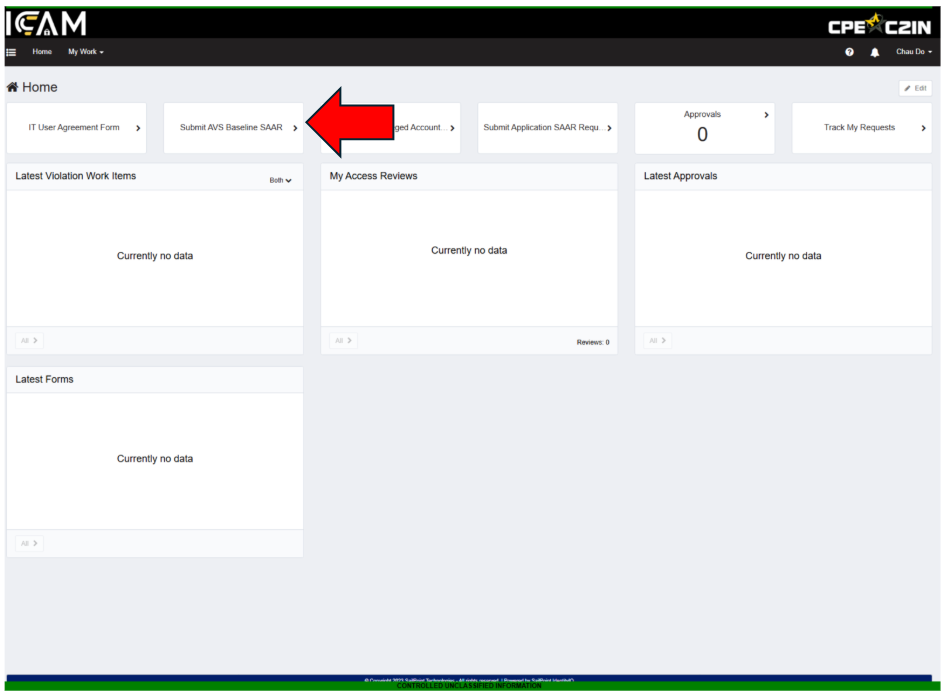
Step 4. On the final page of instructions, you will be prompted to provide the following information:
-Request has a time limit up to two weeks, please have someone action your request within this time limit.
Step 5. Click “submit.” Your request will now be forwarded by email to the POCs listed in the baseline SAAR.
Once the baseline SAAR has been completed and approved, you will receive a confirmation email. You may now request specific system access by submitting an AESMP trouble ticket.
What Do You Need?
All SIPR and CSfC related Instructions can be found on the following COARNG SharePoint site (NIPR access required): https://armyeitaas.sharepoint-mil.us/sites/NGCO-G6/SitePages/Colorado-GuardNet-S.aspx
Here you will find detailed instructions for the following services:
What Do You Need?
All SIPR and CSfC related Instructions can be found on the following COARNG SharePoint site (NIPR access required): https://armyeitaas.sharepoint-mil.us/sites/NGCO-G6/SitePages/Colorado-GuardNet-S.aspx
Here you will find detailed instructions for the following services:
- COARNG SIPR Account requests (AVS baseline/NSAR)
- SIPR token requests
- Replacement token requests
- Pin reset requests
- Expired certificate support requests
- CSfC Fort Bragg Account requests
- CSfC laptop requests
AUDS workstation Request Instructions.
Laptops are issued only to personnel serving in full-time status within the Colorado Department of Military and Veterans Affairs (DMVA) or Colorado National Guard (CONG). This includes Title 32 or Title 10 service members on orders for 180 days or more.
Requests for laptops must be submitted by supervisors on behalf of the receiving employees. Requests must be made by submitting a trouble ticket to the G-6.
Step 1. Navigate to: https://www.aesmp.army.mil/csm?id=csm_index
Step 2. Select “I Need…”
Step 3. On the subsequent page, locate and select “Hardware Request.”
Step 4. The trouble ticket form requires that you provide specific information, note the following:
- UIC – *W008AA (you must include the asterisk)
- Requestor Phone Number – This is the number the G-6 will use to contact the requesting supervisor if there are any issues. Please include a reliable contact number!
Step 5. Submit your ticket.
Specific System Access Request Instructions.
The NSAR (New System Access Request) process is used to request access to specific systems after completing a baseline SAAR.
Step 1. Navigate to: https://www.aesmp.army.mil/csm?id=csm_index
Step 2. Select “I Need…”
Step 3. On the subsequent page, locate and select “New System Access Request.”
Step 4. The trouble ticket form requires that you provide specific information, note the following:
- UIC – *W008AA (you must include the asterisk)
- Requestor Phone Number – This is the number the G-6 will use to contact you if there are any issues. Please include a reliable contact number!
Step 5. On the page that follows you will find system specific requirements, such as training or certifications. Please ensure that you meet the system specific requirements before continuing.
Step 6. Where instructed to provide POCs, include the Supervisor/ISSM/ISSO from your baseline SAAR. The System Owner field should be pre-filled. If so, do not change it!
Step 7. Submit your ticket.